
Authorized dealer · Certified installers · Charlotte, NC headquarters
360 Technology Group is an authorized Brivo dealer and certified installer
We have been selling, installing, programming and servicing Brivo systems across North and South Carolina since 2019 — more than 7 years. Our scope covers Brivo Access subscriptions, ACS300, ACS6000 and ACS6100 control panels, Brivo Smart Readers, Mobile Pass and physical credentials, Brivo Door Station, visitor management and Brivo video integrations.
We were recognized as one of Brivo’s top ten dealers in 2019, and have delivered Brivo projects ranging from a single door to several hundred doors.
- Authorized Brivo dealer — we quote and supply genuine Brivo equipment, licensing and subscriptions.
- Certified Brivo installers — our technicians install, wire, program, commission and document the system.
- Repair and takeover — we service, troubleshoot, expand and take over existing Brivo installations we did not originally install.
- 24/7 emergency service — on-call service technicians for emergency repairs, plus scheduled preventive maintenance.
We cover every city in North Carolina and South Carolina from our Charlotte headquarters. Request a quote or service call Call 704-726-4254
Brivo owner and end-user resource
Brivo Access login, Mobile Pass, Wallet and support
Use the correct official portal, understand which Brivo app you need and route account or field-system problems to the team that can actually resolve them.
Start with the task—not a generic login link
| You need to… | Correct starting point | Who normally owns the next step |
|---|---|---|
| Administer sites, doors, people or events | Brivo Security Suite at access.brivo.com | Your organization’s Brivo administrator; Brivo for account recovery. |
| Use a phone as a door credential | Brivo Mobile Pass for iOS or Brivo Mobile Pass for Android | The credential-issuing property or employer administrator. |
| Manage Brivo from an administrator mobile app | Official Brivo Access app listing and the applicable store for your device | An authorized Brivo account administrator. |
| Find manufacturer documentation or open a Brivo support path | Brivo Access Knowledge Base and official Brivo contact page | Brivo customer care or technical support, depending on the issue. |
| Repair a reader, panel, lock, request-to-exit device or wiring problem | 360 Technology Group service request | An access-control technician working with the client’s account and site contacts. |
Brivo Access login troubleshooting
Confirm the portal and identity path
Use access.brivo.com for Brivo Security Suite. Confirm whether the organization uses a Brivo-managed login or single sign-on through an identity provider such as Okta or Microsoft Entra ID. A working corporate password does not prove that the Brivo role, application assignment or multifactor requirement is correct.
Separate account trouble from field trouble
If the user cannot authenticate, start with the organization’s administrator or identity team. If the user can sign in but cannot see a site, door or function, review assigned roles and site permissions. If the door appears but does not respond as expected, the problem may involve schedules, controller communication, reader input, locking hardware, power or network service.
- Verify the official portal and the exact email address assigned to the account.
- Determine whether sign-in is direct, SSO-based or governed by an identity-provider application assignment.
- Use the approved password-recovery path; do not ask a technician to accept credentials by email.
- Record the time, site, door and visible error without including passwords or invitation codes.
- Escalate to the account administrator, Brivo or the installer according to the failure layer.
Brivo Mobile Pass invitation expired or will not redeem
A Mobile Pass is issued by an authorized administrator and redeemed by the intended user. Brivo’s official guidance notes that invitations are sent to the user and that passes are redeemed through the Brivo Mobile Pass application. If an invitation is expired, already consumed, addressed to the wrong person or associated with a replaced device, the safest path is for the issuing administrator to verify the user record and issue or resend the appropriate credential.
End user checks
- Install the official Brivo Mobile Pass app from Apple or Google.
- Open the newest invitation intended for your email address.
- Confirm the phone has the required connectivity, Bluetooth/NFC settings and device permissions.
- Do not forward the invitation or post its code.
Administrator checks
- Verify the person, email address, credential status and access-group assignment.
- Confirm whether the prior invitation or credential was already redeemed.
- Revoke superseded credentials before issuing a replacement when the operating policy requires it.
- Test access at an approved door and review the event result.
Installer checks
- Verify the reader and credential technology actually deployed at the opening.
- Confirm controller, reader and lock behavior with a known working credential.
- Separate a mobile-device issue from a panel, reader, network or door-hardware issue.
- Document the test without collecting the user’s secret codes.
How adding Brivo to Apple Wallet works
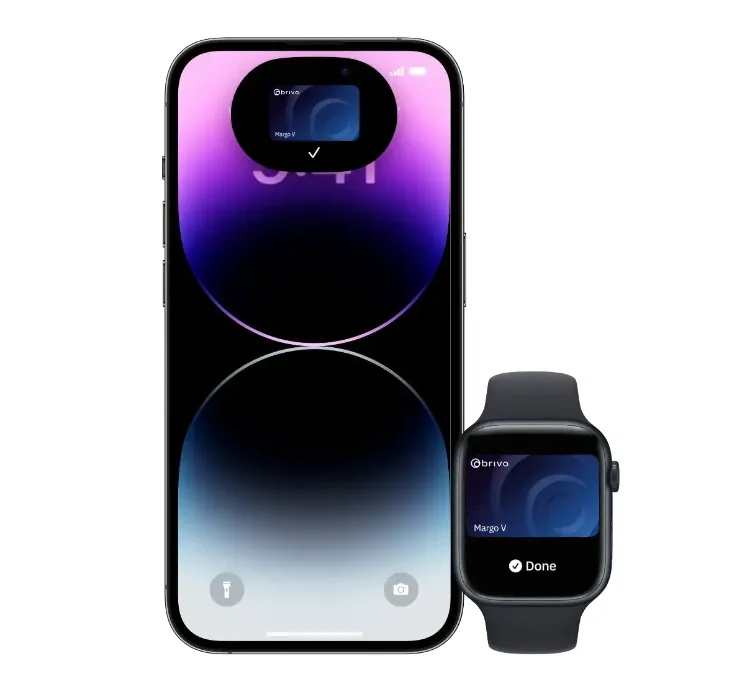
Apple Wallet support is not simply a phone setting. The organization must have an eligible Brivo deployment and the appropriate Brivo Wallet Pass capability. Brivo describes the user flow as opening the invitation, downloading Brivo Mobile Pass and selecting the option to add the eligible badge to Apple Wallet. Device, operating-system, region, reader and purchased-feature eligibility must all be confirmed before promising Wallet access.
- The administrator confirms the account and credential are eligible for Brivo Wallet Pass.
- The user redeems the issued credential in Brivo Mobile Pass on an eligible device.
- The user selects the available Add to Wallet action and follows Apple’s device prompts.
- The installer validates the credential at representative readers and documents any openings that require hardware changes.
Review Brivo’s official Apple Wallet information. Brivo states that Wallet Pass requires an additional purchase and eligible devices.
Brivo customer support phone number and installer support
Brivo currently lists Americas Sales and Technical Support at 1-866-274-8648 and provides official email and regional details on its contact page. Verify contact details on that official page because manufacturer numbers and routing can change.
Call Brivo for manufacturer account, entitlement, platform or product-support matters. Contact 360 Technology Group for site surveys, new Brivo installations, reader or controller replacement, wiring and door troubleshooting, configuration assistance, system takeovers, testing, maintenance and expansion in North and South Carolina.
Need a Brivo technician—not only a login link?
Tell us the site, affected opening, visible symptom, when it began and whether authorized administrators can access the account. Do not submit passwords or invitation codes.
Official Brivo software, firmware and support
Use these manufacturer-owned portals for current downloads, release notes, manuals, advisories and technical resources. 360 Technology Group links to official sources and does not copy or host firmware files.
Update carefully: confirm the exact model, region, hardware revision, installed version, prerequisites, required intermediate releases, support entitlement, integrations, backup, maintenance window, rollback limitations and post-update tests. The wrong package or sequence can interrupt service or prevent a downgrade.
Some portals require a customer, dealer, certified-technician or active-support login. Cloud-managed products may update automatically and may not offer a public firmware file.